Table of Contents
- Step 1: Install and Open Telegram
- Step 2: Create a New Group
- Step 3: Manage Membership and Invite Links
- How to Generate an Invite Link
- Step 4: Adjust Telegram Group Privacy Settings
- Step 5: Best Practices for Private Groups
- Comparison Table: Public vs Private Telegram Groups
- FAQ: Common Questions About Private Telegram Groups
- Q1: Can anyone join my private Telegram group?
- Q2: How do I revoke an invite link?
- Q3: Can I limit who sends messages in my private group?
- Q4: How many members can a private Telegram group have?
- Q5: Is it possible to change a private group to public later?
Creating a private Telegram group allows you to share messages, media, and files with a select audience while controlling who can join. This guide explains the steps to create a private group, manage membership, and adjust privacy settings to ensure your conversations remain secure.
Step 1: Install and Open Telegram
If you don't already have Telegram, download it from Telegram Download or visit the Telegram official website. Open the app and log in to your account.

Step 2: Create a New Group
- Tap the menu icon (three lines) or '+' button and select "New Group."
- Select the contacts you want to add initially and tap "Next."
- Enter a group name and optionally set a group photo.
- Choose Private Group to ensure the group cannot be found via search.
Step 3: Manage Membership and Invite Links
In private groups, you control who joins. There are two main ways to add members:
- Direct Invites: Add members directly from your contacts.
- Invite Links: Generate a private invite link. Only users with the link can join. You can revoke or reset the link anytime to maintain security.
How to Generate an Invite Link
- Open the group, tap the group name, and select "Add Member" or "Invite to Group via Link."
- Copy the link or share it via Telegram or other secure channels.
- To revoke access, select "Revoke Link" and generate a new one.
Step 4: Adjust Telegram Group Privacy Settings
To maintain control over your private group:
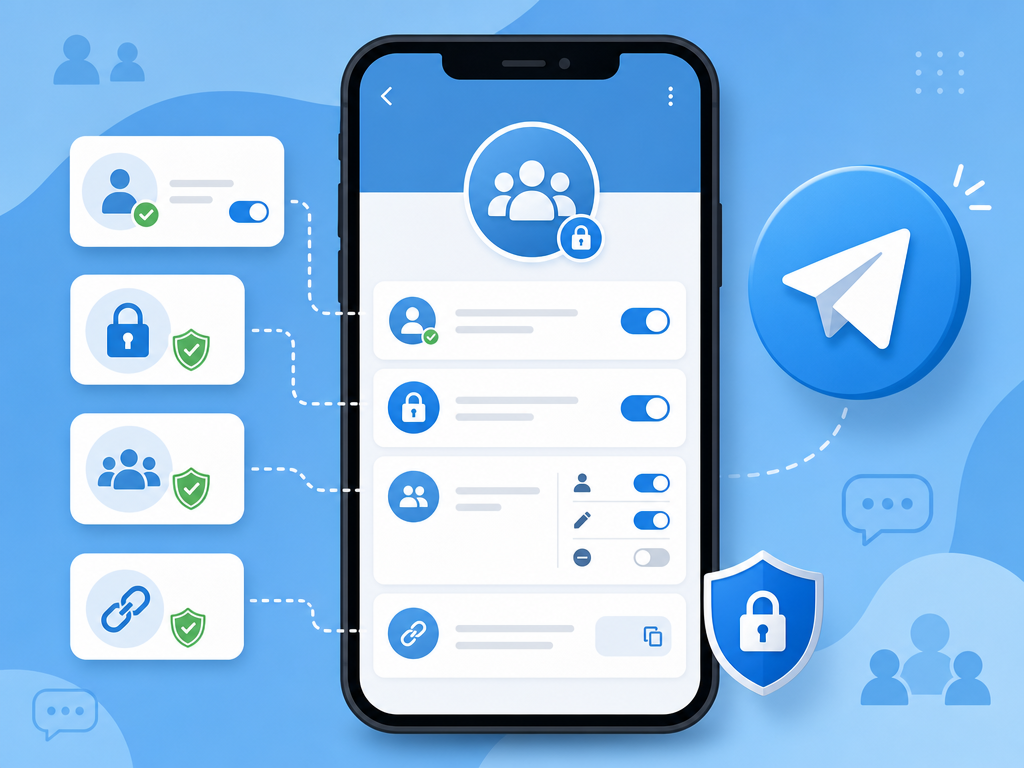
- Who Can Add Members: Limit to admins only to prevent unauthorized additions.
- Message Permissions: Control who can send messages, media, or files.
- Group Info Access: Decide whether members can see participant lists.
Step 5: Best Practices for Private Groups
- Regularly review invite links and revoke old ones.
- Set clear rules and guidelines for group behavior.
- Use admin roles to manage permissions efficiently.
- Educate members on privacy and safe sharing.
Comparison Table: Public vs Private Telegram Groups
| Feature | Public Group | Private Group |
|---|---|---|
| Search Visibility | Visible to all, searchable | Hidden, only accessible via invite |
| Invite Links | Optional | Required for non-admin members |
| Membership Control | Open | Admin-controlled |
| Security | Lower | Higher |
FAQ: Common Questions About Private Telegram Groups
Q1: Can anyone join my private Telegram group?
No. Only users you invite directly or those with a valid invite link can join.
Q2: How do I revoke an invite link?
Go to the group info, select "Invite Links," and choose "Revoke Link" to invalidate it. You can create a new link afterward.
Q3: Can I limit who sends messages in my private group?
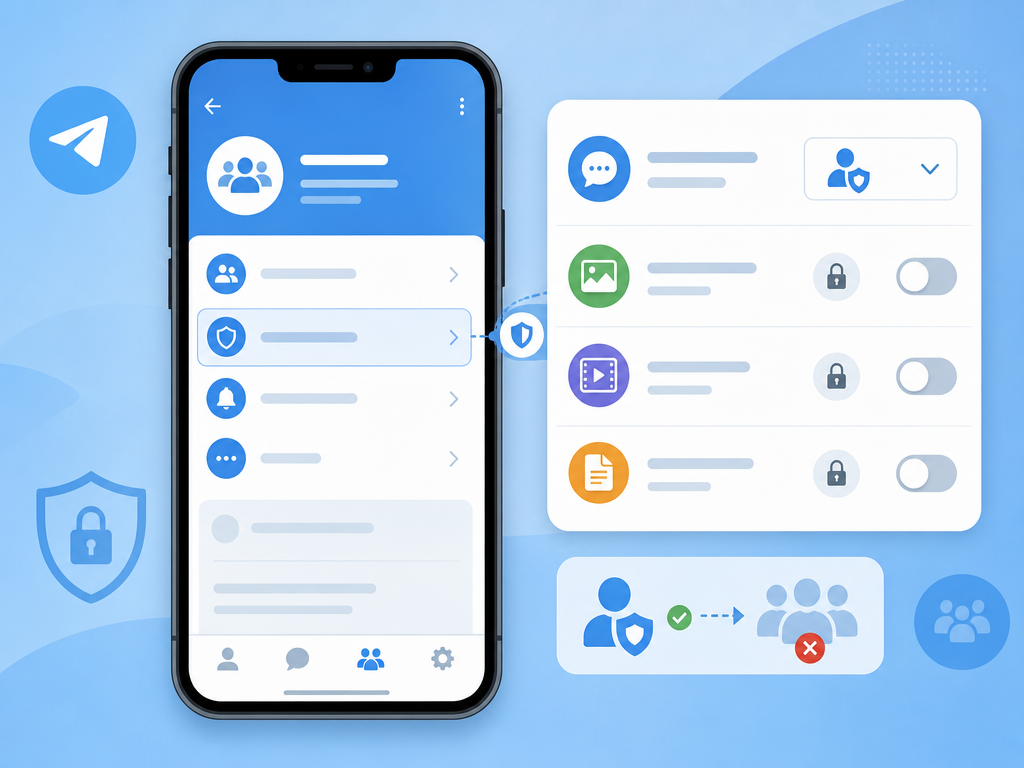
Yes. In group settings, you can allow only admins to send messages or restrict media and files sharing.
Q4: How many members can a private Telegram group have?
Private Telegram groups can support up to 200,000 members with full privacy controls.
Q5: Is it possible to change a private group to public later?
Yes. You can switch the group type in settings, but doing so will make it searchable and reduce privacy.